Orders can be done based on different tables in the database.
For example, Strains are in the strains table, but one can also sell books that are stored in another table.
It is possible to make separate orders for each table, the Order template is used for that.
But is is also possible to activate 1 global order template for the full database.
In that case, all ordered items, regardless from which table they come, are placed in the same order.
The advantage is that the user has to complete the process only one time.
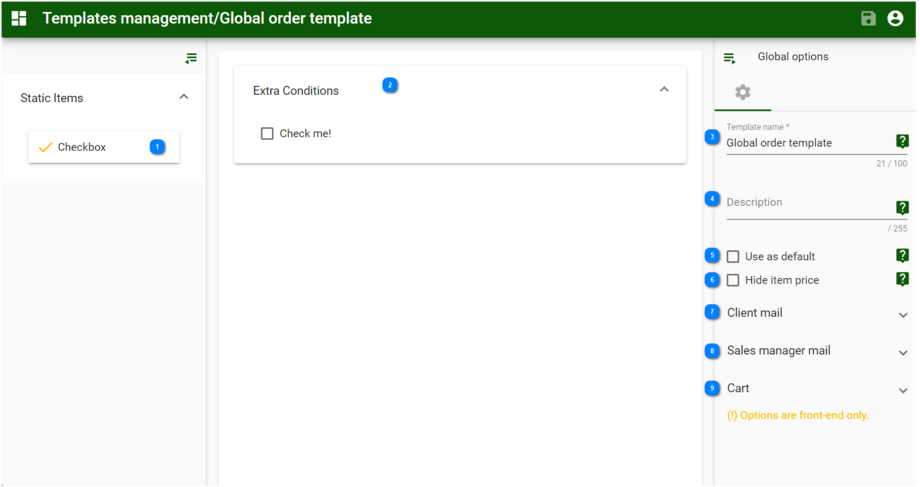
Hover the mouse on top of any of the numbers below to see detailed information.
|
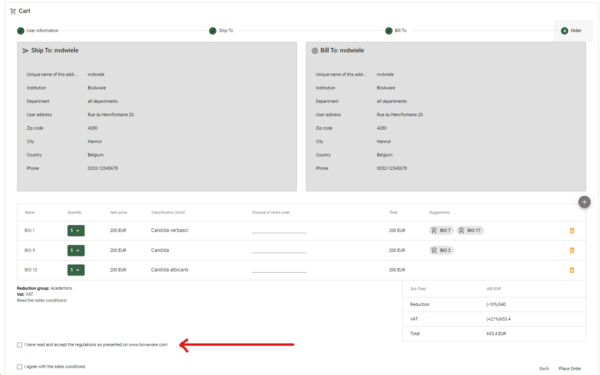
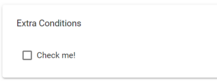
Optional: Drag the checkbox to the "Extra conditions" section to force the user ordering to accept the conditions before completing the order.
The checkbox will be shown in step 1 of the cart wizard.
|
|
|
The middle section shows the dragged checkbox (see #1).
|
|
|
Global options:
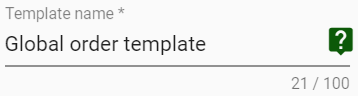
Template name Name of the Global order template.
|
|
|
Global options:
Description Description of the Global order template.
|
|
|
Global options:
Use as default Use this Global order template as the default one.
Note that multiple Global order templates can be created, however only 1 can be applied.
The one that is checked as default will be used. If none are checked the the first template will be used.
|
|
|
Hide item price If checked, the items price column, as well as the Total column and the Sub Total will not be shown during the checkout.
If unchecked, the item price column, the Total column and the Sub Total are shown.
|
|
|
Mail subject Define the subject of the email that will be sent to the buyer.
An example of Mail subject:
|
Thanks for your order request at BioAware
|
Mail body Define the email body to send to buyer.
Type CTRL + space or @ to show suggestions.
Consider compiling before saving your changes by clicking on the gavel button. Only successfully compiled code will be saved and after clicking the save button.
If a compilation error occurred, the last successfully compiled code will be saved.
|
|
|
-
Sales managers email Provide the email address(es) that should receive an email after a completed order.
-
Order mail subject Enter the text that will be shown in the subject of the email sent to the manager(s). An example of Mail subject:
|
Order request - @Model.Client.Lastname - @Model.Client.Institution - @Model.Client.Country - @Model.OrderLines.OrderHeader.Name
|
Click on the Compile button to save it.
-
Order mail body Define the email body to send to the manager(s).
Type CTRL + space or @ to show suggestions.
Consider compiling before saving your changes by clicking on the gavel button.
Only successfully compiled code will be saved after clicking the save button.
If a compilation error occurred, the last successfully compiled code will be saved.
Click on the Compile button to save it.
|
|
|
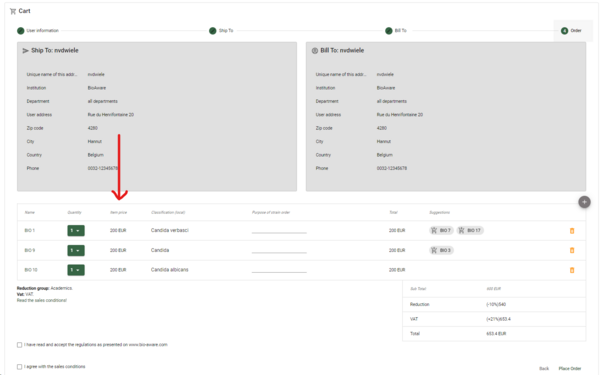
Sales conditions This text will be shown in Step 1 of the cart wizard.
|
|