In the web Admin panel, in the Templates section, an Order template can be created.
For each type of item, an own order template is required.
This means, if a user should be able to order Strains and books in 1 go, then make 2 separate order templates.
One based on the Strains table, and one based on the Books table.
-
Note that each order template has specific email content details. If one overall email is prefered per order, then create a
Global order template on top.
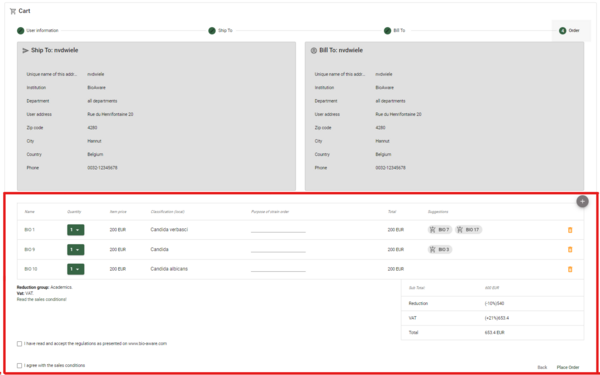
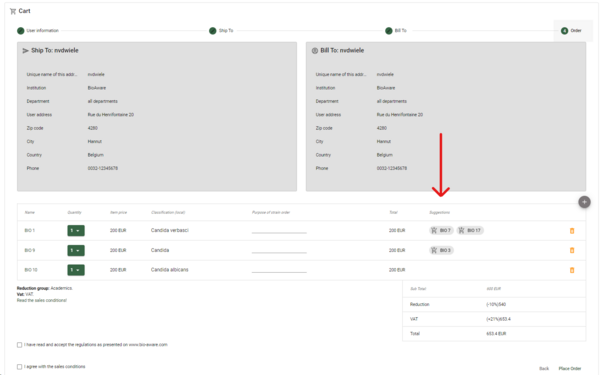
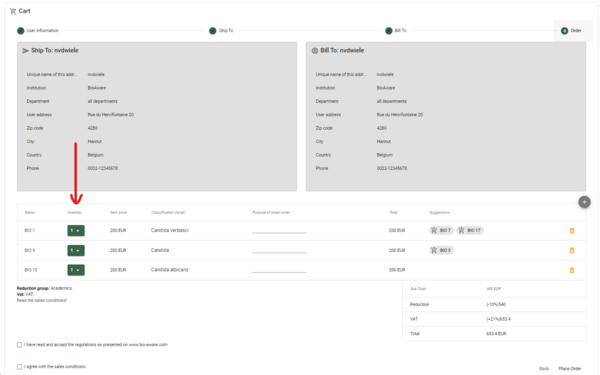
The Order template holds information that is presented in the last step of the cart-wizard.
Front end view of the last step of the wizard is build up with:
-
On top: Shipping display and the Billing display.
-
Below: The details of the ordered items as set in this Order template.
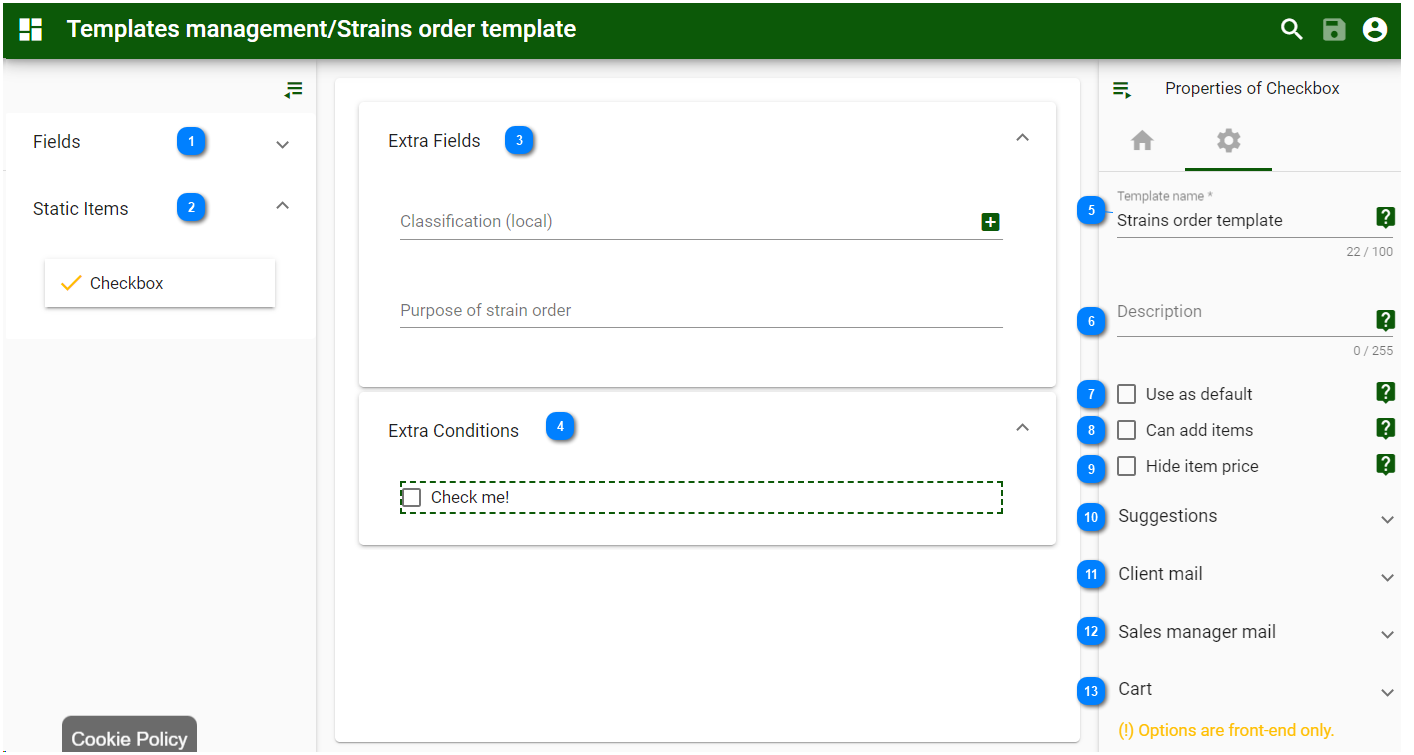
Backstage view (Order template including its properties section on the right):
|
Drag the wanted fields from the left to the "Extra fields" section in the middle (#3).
The dragged fields are shown here: 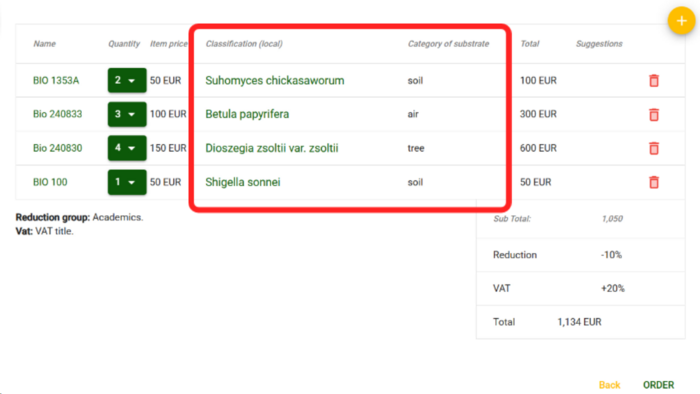 Note that fields from the main (Strains) table can be selected to be displayed here. For each of the fields, a copy of the field will be saved in the Order header table to store the information that the user ordering has entered.
|
|
|
Drag the Checkbox to the "Extra Conditions" section (#4).
This checkbox will be shown in Step 1 of the cart wizard.
|
|
|
Dragged fields (see #1) are shown here.
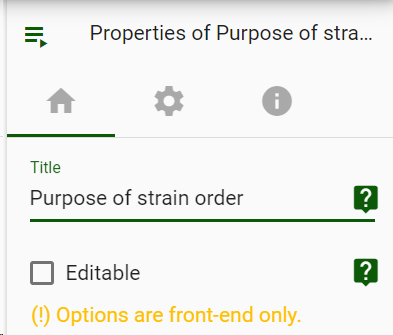
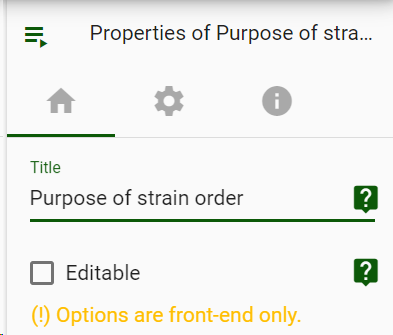
In the Properties, General options of the field:
-
Title Name for the header of the columns in the grid.
-
Editable If checked, the field will be editable when and order is made.
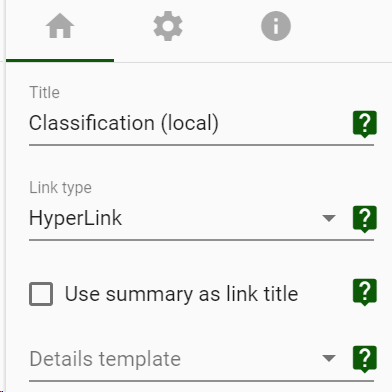
For link fields, extra properties are available:
-
Link type (Hyperlink or Chip).
-
Use summary as link title If checked, the link name will be set to the summary field value and the tooltip will be set to the target record name, otherwise it will be the opposite.
-
Details template If the popup mode is selected choose the details template to display more details.
|
|
|
Dragged checkbox (see #2) is shown here.
The "Extra conditions" are shown in Step 1 of the cart wizard.
The text displayed behind the checkbox can be set in the General properties on the right.
As well as the place of the checkbox (before or after the text) and the color of the text (Primary, Accent or Warn).
|
|
|
Properties - Global options:
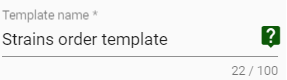
Template name Name of the current Order template.
|
|
|
Properties - Global options:
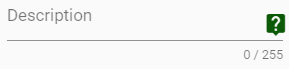
Description Text describing the current Order template (optional).
|
|
|
Properties - Global options:
Use as default If checked, this template can be used as a starting point for new Order templates on the same table.
|
|
|
Properties - Global options:
Can add items If checked, user can add items to the cart during the checkout.
|
|
|
Properties - Global options:
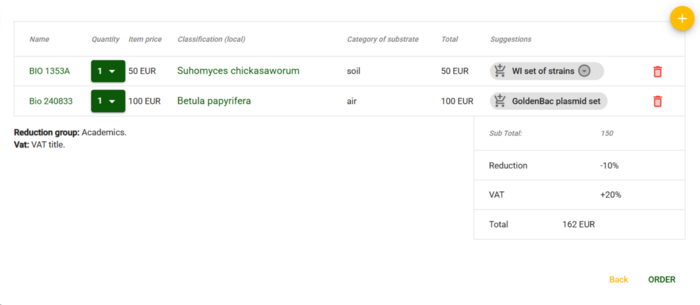
Hide item price If checked, the items price column, as well as the Total column and the Sub Total will not be shown during the checkout.
If unchecked, the item price column, the Total column and the Sub Total are shown.
|
|
|
Properties - Global options:
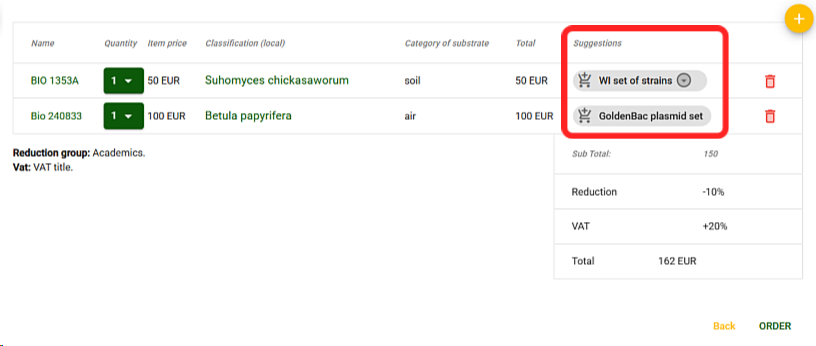
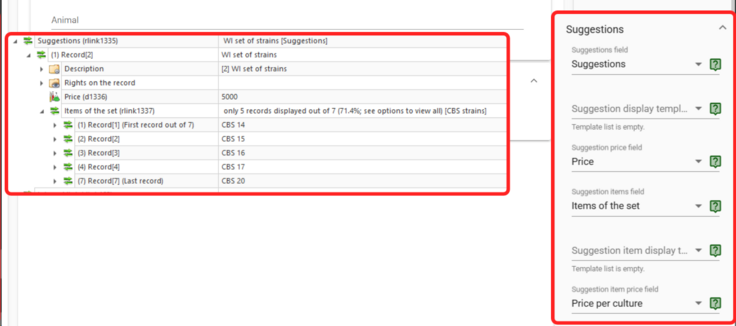
Suggestions Select the link field that is shown in the checkout, representing other suggested items to buy as well.
In this example there is a link field called Suggestions, pointing from the Strains table to the Suggestions table.
In the Suggestions table there are (for example) records that represent a set of Strains that are belonging to a comon set.
So if one buys 1 item, it is common that other items from the same set are to be bought too.
Set the Suggestion price field of the suggested items. This is a number field in the Suggestions table in this case.
Set the Suggestion items field which is the link field pointing to other items that belong to this same set.
|
|
|
Properties - Global options:
Mail subject Define the subject of the email that will be sent to the buyer.
An example of Mail subject:
|
Thanks for your order request at BioAware
|
Mail body Define the email body to send to buyer.
Type CTRL + space or @ to show suggestions.
Consider compiling before saving your changes by clicking on the gavel button. Only successfully compiled code will be saved and after clicking the save button.
If a compilation error occurred, the last successfully compiled code will be saved.
|
|
|
Properties - Global options:
-
Sales managers email Provide the email address(es) that should receive an email after a completed order.
-
Order mail subject Enter the text that will be shown in the subject of the email sent to the manager(s). An example of Mail subject:
|
Order request - @Model.Client.Lastname - @Model.Client.Institution - @Model.Client.Country - @Model.OrderLines.OrderHeader.Name
|
Click on the Compile button to save it.
-
Order mail body Define the email body to send to the manager(s).
Type CTRL + space or @ to show suggestions.
Consider compiling before saving your changes by clicking on the gavel button.
Only successfully compiled code will be saved after clicking the save button.
If a compilation error occurred, the last successfully compiled code will be saved.
Click on the Compile button to save it.
|
|
|
Properties - Global options:
Cart
-
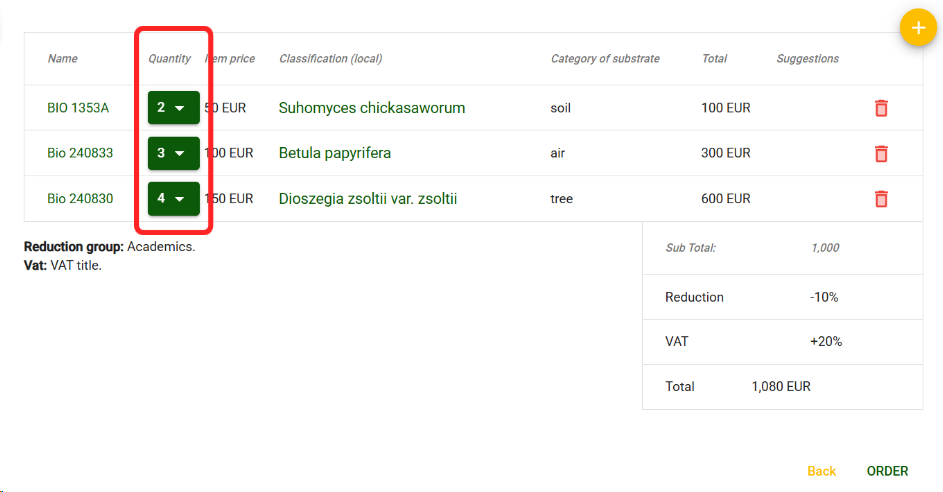
Max quantity per item The number of copies of the same item to be ordered. Max 20.
-
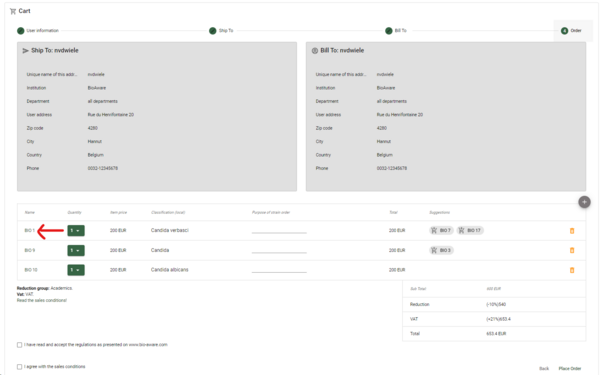
Price field D field in the main table (Strains) indicating the price of the item (without reduction or VAT).
-
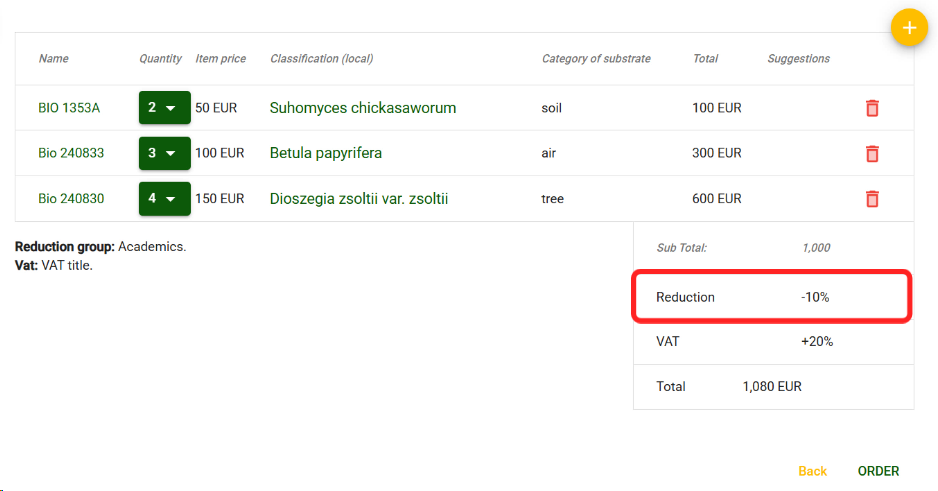
Enable reduction If checked reduction is applied in the checkout. Enter the percentage of the discount.
Note that the discount is active for everyone ordering, so it can for example be useful when a special discount is given during Christmas time or Black Friday.
-
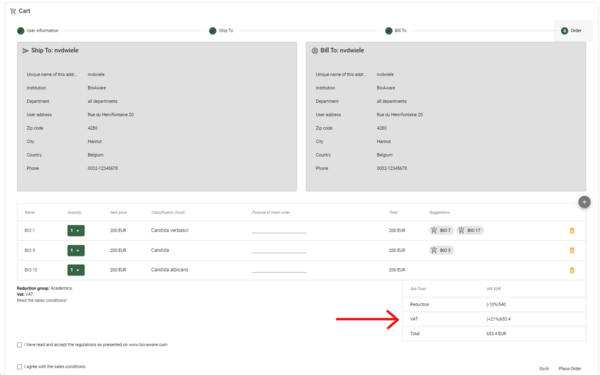
Enable VAT If checked VAT is included. Enter the percentage of the VAT.
-
Details template for order The details template (display template) used in ordering process to get the link for details on ordered items.

-
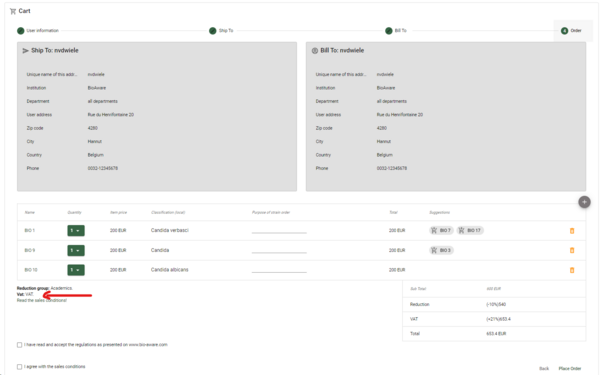
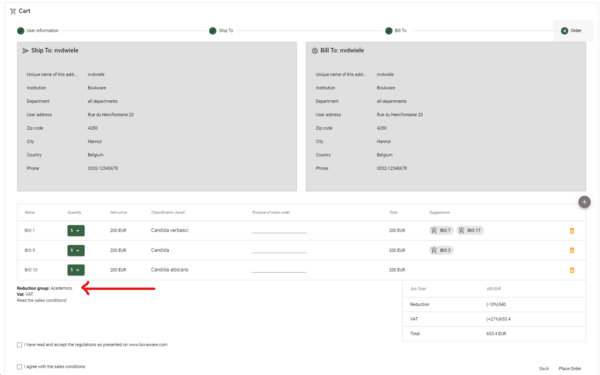
Reduction group Enter the text explaining the reduction on the items that are on sale.
-
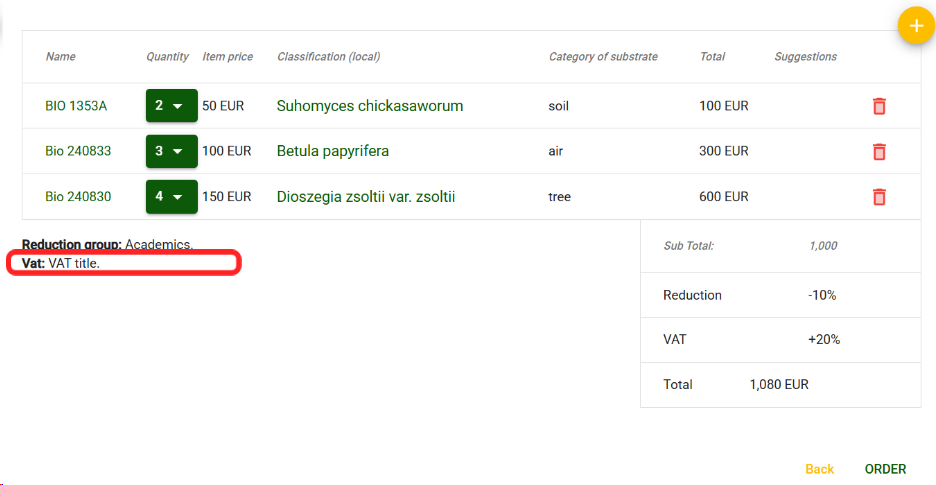
VAT title Enter the text to show regarding the VAT.
-
Sales conditions This text will be shown in Step 1 of the cart wizard.
|
|