

Activate cart (admin)
It is possible to allow users/visitors of the website to order items from your collection/database.
The user can do a search on the wanted items and add them to the cart.
A 6 step wizard appears to complete the order:
-
Step 1: Terms and conditions. Information and checkboxes set in the Order template
-
Step 2: User information. Form template on Userlist table.
-
Step 3: Ship to. Form template on Addresses table. Display template is used to show the shipping information in step 6.
-
Step 4: Bill to. Form template on Addresses table. Display template is used to show the billing information in step 6.
Note that step 3 is only visible in the cart if the user does not check the box "Use same address for billing" in Step 2.
-
Step 5: Additional information. Order form template with extra fields concerning the current order.
-
Step 6: Order. Summary of the information regarding the current order.
The following steps are needed to activate the cart:
-
In the General settings, Cart section,
-
Check "Enable sales in website" to make the Cart available of the website.
-
Set the Monetary unit.
-
Enter the text to be displayed on the button in the checkout, to complete the order.
-
In the Templates section, create a Form template on Userlist table. (This form is shown to the enduser in step 2 of the order wizard).
-
In the General settings, Cart section, check "Can edit user profile" and select the form template which was created in the previous step.
-
In the Templates section, create 2 forms and 2 displays:
-
Form template, on the Addresses table, for shipping information (Shipping form).
-
Display template, on the Addresses table, for shipping information (Shipping display).
-
Form template, on the Addresses table, for billing information (Billing form).
-
Display template, on the Addresses table, for billing information (Billing display).
-
In the General settings, Cart section, select the Billing form, Billing display, Shipping form and Shipping display. All were created in the previous step.
-
Check "Can use same address" to allow the user to skip Step 4 Bill to and use the same address details as provided in Step 3 Ship to.
-
Check "Show grand total" to see the full price of all items in the order, in Step 6.
-
In the Templates section, create the Order template on the main* table. *Main table is Strains in case Strains are being sold.
-
In the properties of the Order template, provide all preferred settings.
-
See below the picture explaining the different options/settings to be set in the properties section of the Order template.
-
In the General settings, Cart section, select the Order form template which was created in the previous step.
-
In the Summary template, In the properties, Global options, Cart, check "Enable cart".
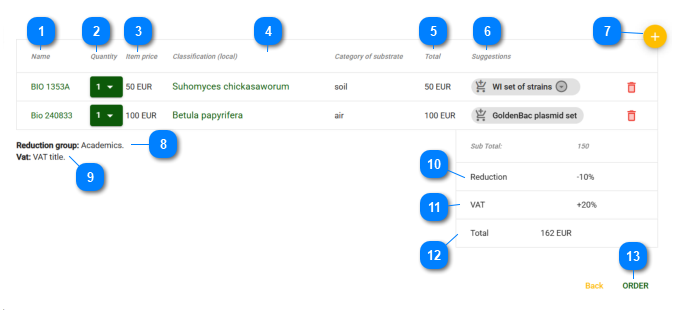
  The name of the item to be ordered is show in the cart.
It is possible to show more details about the specific items by selecting the preferred display template.
For more information, click here (#13 point 8).
|
  It is possible to set a maximum number of items to be ordered.
For more information, click here (#13 point 1).
|
  Decide which field is used to present the price of the item. Select the field in the properties section.
It is also possible to decide whether the item price is shown or hidden in the cart/checkout.
Check or uncheck the box "Hide item price" in the properties.
For more information, click here (#13 point 2).
|




  Suggested items can be shown in the cart.
The item(s) presented in the suggestions section are linked through the Suggestions table.
For more information, click here (#10).
|


  Enter the text that is shown explaining the reduction given.
For more information, click here (#13 point 6).
|
  Enter the text that is shown explaining the VAT given.
For more information, click here (#13 point 7).
|
  Decide whether on not to add reduction to the cart and provide the percentage of the reduction.
For more information, click here (#13 point3).
|
  Decide whether or not to add VAT to the cart and provide the percentage of the VAT.
For more information, click here (#13 point 4).
|


